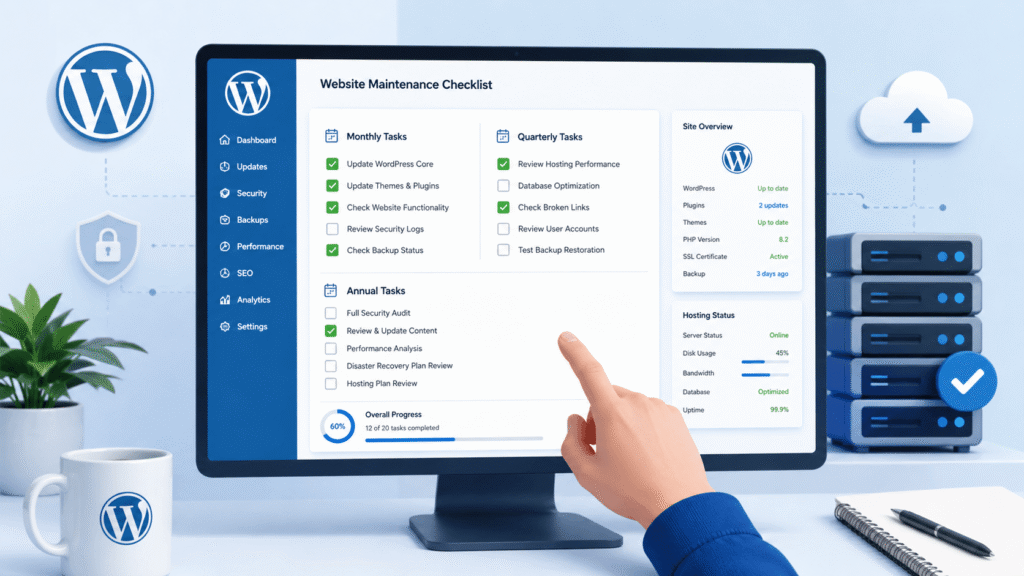
INTRODUCTION
I learned the hard way that ignoring maintenance kills WordPress sites. Six months into running my site, things started breaking. Plugins had conflicts. The database grew bloated. Performance tanked.
The problem wasn’t one catastrophic failure – it was dozens of small neglected tasks adding up. I was so focused on creating content that I forgot to maintain the foundation.
Now I follow a simple routine. Thirty minutes of maintenance per month, and my site runs perfectly. No surprises. No emergency fixes at 2 AM.
This guide is that routine. If you follow this checklist, you’ll catch problems before they become disasters.
WHY MAINTENANCE MATTERS ON HOSTINGER
Hostinger hosting is reliable, but it’s shared hosting. Multiple websites share the same server resources. Regular maintenance keeps your site from consuming excessive resources and ensures reliable performance.
Maintenance also prevents security vulnerabilities. Outdated WordPress versions and plugins are how most sites get hacked – not through sophisticated attacks, but through neglected updates.
Think of maintenance like car maintenance. You don’t need to rebuild the engine, but regular oil changes keep everything running smoothly.
A WORD ON AUTOMATIC UPDATES
Before diving into the checklist, know this: you don’t have to manually update everything.
WordPress and most plugins support automatic updates. You can enable auto-updates for less critical plugins and focus manual reviews on essential plugins like security tools and backups.
Here’s my approach:
Security plugins (Wordfence, etc.) – Manual updates only. Review before applying.
Backup plugins (UpdraftPlus, etc.) – Manual updates only. These are critical.
Minor plugins – Enable auto-update. These rarely cause problems.
WordPress core – Set to auto-update, but verify site works afterward.
This balances convenience with safety. Auto-updates save time for plugins you don’t think about, but critical plugins deserve human oversight.
You can set auto-updates in Plugins → Installed Plugins. Look for “Enable auto-updates” next to each plugin.
MONTHLY MAINTENANCE (30 minutes per month)
Do these tasks every month to keep your site running smoothly.
1. Backup Your WordPress Site
This is non-negotiable. Backups are your insurance policy.
If you haven’t already, set up automatic backups using UpdraftPlus. The guide on backing up WordPress on Hostinger walks through this completely.
Once automatic backups are running, verify one backup actually works. Every month, check your UpdraftPlus dashboard to confirm backups completed successfully.
Look for a green checkmark showing the most recent backup date. If you see an error or “Never,” contact Hostinger support immediately.
This takes 5 minutes. It’s the most important task on this list.
2. Update WordPress Core
WordPress releases updates constantly. Some are security patches. Some add features. All should be applied.
Check your WordPress dashboard. Look for a notification at the top saying “WordPress X.X.X is available” or go to Dashboard → Updates.
Click “Update Now” if an update is available.
If you’ve enabled auto-update for WordPress core, verify the update happened. Then check that your site still loads properly. Test a few pages to ensure everything works as expected.
This usually takes 5 minutes.
3. Update All Plugins
Just like WordPress, plugins receive security updates and bug fixes.
Go to Plugins → Installed Plugins. Look for any plugins showing an update badge (usually a red circle with a number).
If you’ve set non-critical plugins to auto-update, you just need to review critical plugins (security, backup, performance).
Click “Update Now” on critical plugins that need updating.
After updates complete, check your site works properly. Sometimes a plugin update breaks compatibility with another plugin. This is rare, but it happens.
If something breaks, restore your latest backup immediately (which is why backups matter).
This usually takes 5-10 minutes depending on how many plugins need updating.
4. Scan for Malware
Even with SSL and security plugins, malware can slip through.
Install Wordfence if you haven’t already. Go to Wordfence → Scan → Start Scan.
Wordfence will scan your entire WordPress installation for known malware signatures.
The first scan takes 10-15 minutes. Subsequent scans are faster. After scanning completes, review any warnings. Most are false positives, but take them seriously.
If Wordfence finds malware, you’ll need to clean it. Wordfence walks you through the process, or contact Hostinger support for help.
This takes 15 minutes.
5. Check Your Site Speed
Performance affects user experience and search rankings.
Use Google PageSpeed Insights (pagespeed.web.dev). Enter your site URL and run the test.
A score of 90+ is excellent. Score 70-89 is good. Score below 70 needs attention.
If your score dropped since last month, something changed. Common causes are new heavy plugins, unoptimized images, or increased traffic.
You don’t need to fix every warning, but if speed degraded, read the guide on how to speed up WordPress on Hostinger for optimization techniques.
This usually takes 5-10 minutes.
6. Review User Accounts
You should be the only admin. Sometimes old accounts linger unnecessarily.
Go to Users and review all accounts. If you added temporary editors or contributors who no longer need access, delete them.
Also verify that no suspicious admin accounts exist. If you see an unfamiliar admin account, delete it immediately and change your password (in case your password was compromised).
This takes 5 minutes.
QUARTERLY MAINTENANCE (every 3 months)
Do these deeper maintenance tasks four times per year.
7. Update Theme Files
WordPress themes also receive updates for security and bug fixes.
Go to Appearance → Themes. Look for any available updates.
If you’ve enabled auto-updates on themes, verify the update happened. Then test your site to ensure nothing broke.
Themes rarely break from updates, but it’s worth a quick check.
This takes 5 minutes.
8. Clean Up Comments and Spam
WordPress accumulates spam comments over time. They take up database space.
Go to Comments and review “Spam” folder. WordPress automatically catches most spam, but check occasionally.
Delete the spam folder in bulk. Also delete any comment spam that passed through.
In your comment settings (Settings → Discussion), consider enabling moderation for comments from first-time commenters. This reduces spam without being annoying.
This takes 10 minutes.
9. Clean Up Database (BACKUP FIRST – CRITICAL)
A bloated database slows your site down. However, database optimization involves deleting data, so this is dangerous.
WARNING: Before proceeding, run a fresh backup immediately. This is the most critical step. Do not skip it.
Go to your UpdraftPlus dashboard and click “Backup Now.” Wait for it to complete before proceeding with any optimization.
Once you have a verified backup, install WP-Optimize (Plugins → Add New → search “WP-Optimize”).
Go to WP-Optimize and click “Run Optimization.”
WP-Optimize will clean post revisions, spam comments, expired transients, and other junk.
It’s safe to run because WP-Optimize is designed for WordPress, but the backup ensures you can recover if anything goes wrong.
After optimization completes, verify your site works properly. This usually takes 5-10 minutes.
This takes 15 minutes total.
10. Test Your Backup Restoration
Here’s something most people skip but is absolutely critical: test that your backup actually restores.
Once per quarter, take your latest UpdraftPlus backup and practice restoring it to a staging environment.
If you don’t have a staging environment, you can skip this in favor of just verifying the backup file exists and shows no errors.
Never restore a backup to your live site unless absolutely necessary. This is just practice.
This takes 15 minutes.
11. Check Your SSL Certificate
Your SSL certificate automatically renews on Hostinger, but verify it’s working.
Go to your Hostinger control panel → Security → SSL.
Confirm your SSL shows “Active” with a green checkmark.
If it shows “Expired” or “Needs Renewal,” contact Hostinger support immediately.
This rarely happens because Hostinger auto-renews, but checking prevents surprises.
This takes 2 minutes.
ANNUAL MAINTENANCE (once per year)
Do these deep maintenance tasks once yearly.
12. Update PHP Version
This is critical but often overlooked. PHP is the language WordPress runs on.
Log into your Hostinger control panel and look for “Website” → “PHP Version” or “Programming Language.”
Check your current PHP version. WordPress recommends PHP 8.0 or higher (ideally 8.2+).
If you’re running PHP 7.4 or lower, upgrade to the latest stable version (usually 8.2 or 8.3).
Before upgrading, follow these important steps:
Back up your entire site using UpdraftPlus
Test in a staging environment if possible
If you must upgrade on live, do it during low-traffic hours
After upgrading, verify your site works. Test critical functionality like form submissions and checkout if you have an online store.
Hostinger makes this easy – you just select the version and apply. Compatibility issues are rare, but backups protect you if they occur.
This takes 10 minutes.
13. Review Your Hostinger Plan
Your site needs grow over time. Annually, review whether your current Hostinger plan still fits.
Log into Hostinger and check your current plan details. Look at:
Current storage used vs. available storage
Current bandwidth used vs. limits
How many WordPress sites you’re running
Overall site performance
If you’re approaching storage limits or experiencing slower performance, you might need to upgrade to a higher plan.
Don’t upgrade unless you actually need to – but planning ahead prevents performance issues.
This takes 10 minutes.
14. Audit Your Installed Plugins
Over a year, you might accumulate plugins you no longer use. Unused plugins consume resources and create security risks.
Go to Plugins → Installed Plugins.
Look at each plugin. Ask yourself: “Do I actively use this?”
If the answer is no, deactivate it. Wait a week to make sure nothing breaks. Then delete it.
The fewer plugins running, the faster and more secure your site.
This takes 20 minutes.
15. Review Your Security Setup
Security measures should be comprehensive, not just SSL.
Make sure you have:
SSL certificate (How to add SSL certificate to WordPress on Hostinger)
Strong password on your WordPress admin account (minimum 12 characters with uppercase, lowercase, numbers, and symbols)
Two-factor authentication enabled in Wordfence if available
Regular backups (which you already do monthly)
Security plugin like Wordfence running (which you already do monthly)
If you’re missing any of these, implement them now.
Also verify you’ve read the complete guide on WordPress security best practices for defense-in-depth protection.
This takes 15 minutes.
16. Check for Broken Internal Links
Over time, some links you’ve added to posts might break. This hurts user experience and can harm SEO.
Use the Broken Link Checker plugin (Plugins → Add New → search “Broken Link Checker”).
Go to Tools → Broken Link Checker and run a scan.
Fix broken links by editing the affected posts. Either update the link or remove it.
This takes 30 minutes depending on how many broken links exist.
WHAT NOT TO DO
Don’t hack your code trying to optimize things yourself. Leave WordPress core files alone unless you’re a developer.
Don’t delete database tables you don’t recognize. One mistake breaks your entire site.
Don’t share your WordPress admin password with anyone. Use plugin permissions instead.
Don’t ignore security warnings from Wordfence or other security plugins. They exist for a reason.
Don’t upgrade PHP version without backing up first. This is the one time a backup is absolutely essential before making changes.
WHEN SOMETHING BREAKS
If something breaks during maintenance:
Restore your latest backup immediately. This is why backups matter.
Contact Hostinger support. They’re responsive and can help diagnose database or server issues.
Don’t panic. Most issues are recoverable.
FINAL THOUGHTS
Maintenance sounds tedious, but it’s the difference between a thriving site and a neglected one.
Follow this checklist and you’ll spend just a few hours per year preventing disasters that could cost weeks to fix.
Your future self will thank you when your site just works, day after day, without unexpected problems.