How to Speed Up Your WordPress Website
INTRODUCTION
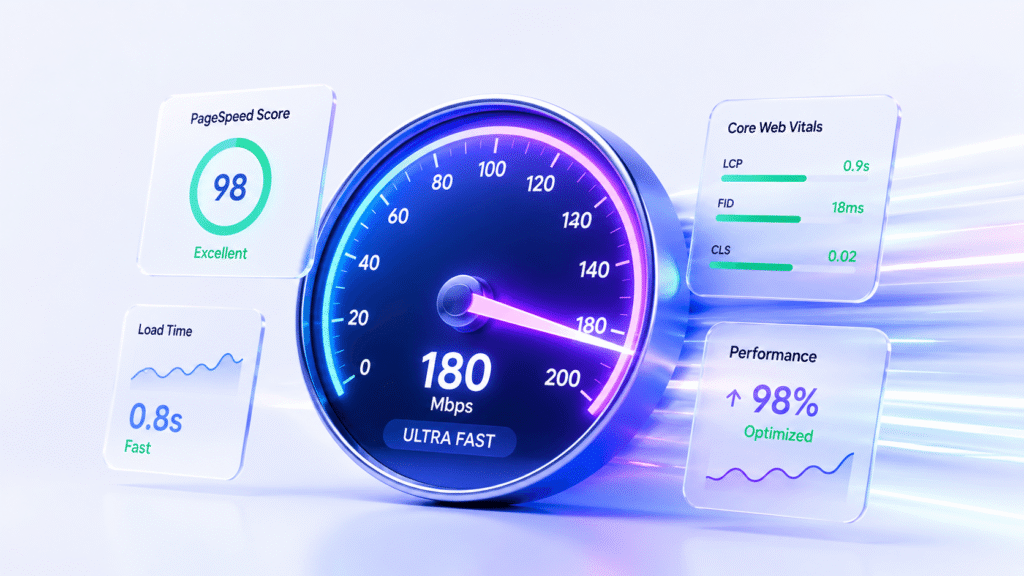
Website speed is one of the most critical factors for success in today’s digital world. Studies show that a one-second delay in page load time can result in a 7% loss in conversions, 11% fewer page views, and a 16% decrease in customer satisfaction.
For WordPress website owners, slow loading times can be devastating. Not only do slow websites frustrate visitors, but they also rank lower in Google search results. In fact, page speed is an official Google ranking factor.
The good news is that improving your WordPress website speed doesn’t require advanced technical knowledge. With the right strategies and tools, you can significantly improve your website’s performance.
In this comprehensive guide, we’ll explore the most effective ways to speed up your WordPress website. We’ll cover everything from image optimization to caching strategies, hosting improvements, and code optimization.
Why Website Speed Matters
Before diving into optimization strategies, let’s understand why website speed is so important for your WordPress site.
The Impact of Slow Website Speed
Website speed directly affects user experience. Google reports that over 53% of mobile users leave a website that takes longer than three seconds to load. For every second of delay, you lose valuable organic traffic and potential customers.
Slow websites also hurt your search engine rankings. Search engines reward fast websites with better visibility, while penalizing slow-loading pages.
Key Benefits of a Fast Website
- Improved User Experience: Fast-loading websites keep visitors engaged and reduce bounce rates.
- Better Search Rankings: Faster sites gain higher Core Web Vitals scores in Google Search Console.
- Higher Conversion Rates: Improving load time by even one second leads to noticeable increases in engagement and sales.
- Lower Server Resource Usage: Optimized code and images consume less server bandwidth.
1. Image Optimization: The Most Critical Step
Large, unoptimized images are the #1 cause of slow WordPress websites. Images often account for more than 50% of a webpage’s total file weight.
Proven Strategies for Image Optimization:
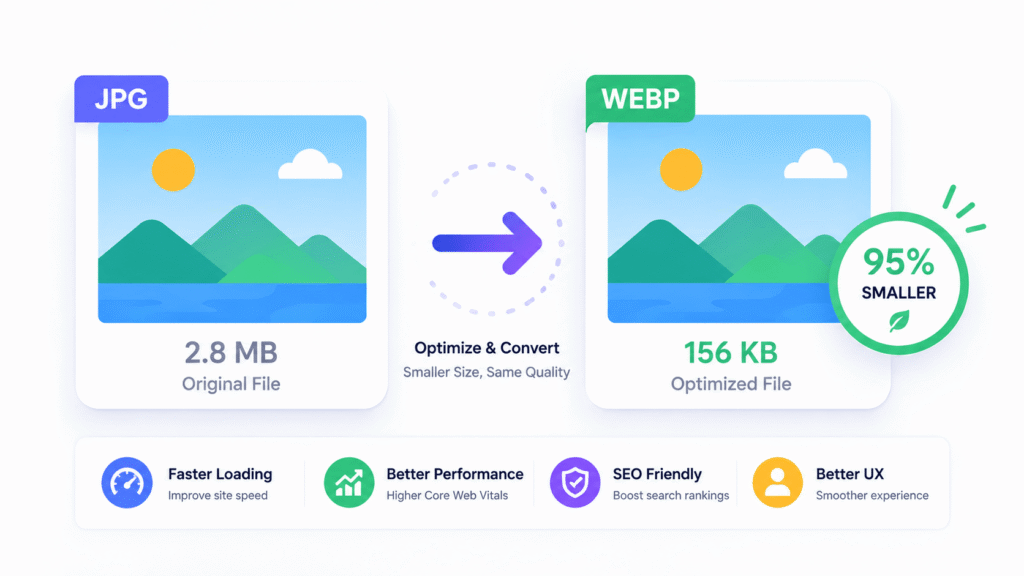
- Keep File Sizes Under 200KB: Before uploading any image, use free tools like TinyPNG or Squoosh to compress file size without losing quality.
- Use Next-Gen Formats (WebP): Convert traditional JPG or PNG images into WebP. WebP provides superior compression, reducing file size by 25–35% compared to PNG/JPG.
- Enable Lazy Loading: Lazy loading delays image downloads until the user actually scrolls down to them.
- Use SEO Alt Text Correctly: Always add descriptive Alt Text to your images to improve accessibility and image SEO.
2. Enable Caching and Server Optimization
Caching creates a static HTML copy of your pages, allowing visitors to load your site almost instantly without querying the database every time.
Best Caching Plugins:
- LiteSpeed Cache (LSCache): Highly recommended if your server supports LiteSpeed. It handles page caching, Object Cache, and image optimization in one place.
- WP Rocket: Premium all-in-one performance plugin.
- W3 Total Cache / WP Super Cache: Excellent free alternatives.
Related Guide: If you are hosted on Hostinger, check out our specialized guide on [How to Speed Up WordPress on Hostinger] to configure server-level caching properly.
3. Choose Fast and Secure Hosting
Your hosting provider forms the foundation of your site’s performance. High Time to First Byte (TTFB) over 1 second usually indicates slow hosting infrastructure.
Key Hosting Speed Requirements:
- SSD/NVMe Storage: Fast read/write speeds for database queries.
- SSL Certificate: Modern HTTP/2 and HTTP/3 protocols require an active SSL certificate to deliver assets rapidly and securely.
- PHP Version: Ensure your hosting environment is running the latest PHP version (PHP 8.1+).
Security Tip: A secure site is a fast site. Make sure you have configured your SSL properly by reading our tutorial on [How to Add SSL Certificate to WordPress on Hostinger].

4. Optimize Your WordPress Database
Over time, your WordPress database accumulates unnecessary clutter like draft revisions, trashed comments, spam, and expired transients.
Database Maintenance Tips:
- Limit Post Revisions: Set a limit on how many post revisions WordPress saves.
- Clean Database Tables: Use plugins like WP-Optimize or Advanced Database Cleaner to safely sweep old database overhead.
- Regular Cleanup: Schedule monthly database maintenance to keep query times lightning fast.
5. Minify CSS, JavaScript, and HTML
Minification removes unnecessary spaces, line breaks, and comments from source code files without altering their execution.
- Minify CSS & JS: Reduces asset file size by 20–40%.
- Combine Files (Defer Loading): Defer non-essential JavaScript to eliminate render-blocking resources in Google PageSpeed Insights.
- Autoptimize / LiteSpeed Cache: Both plugins handle code minification with simple toggle switches.
6. Test and Monitor Your Website Speed
Regular speed audits ensure that new plugins or large assets aren’t slowing down your site.
Recommended Speed Testing Tools:
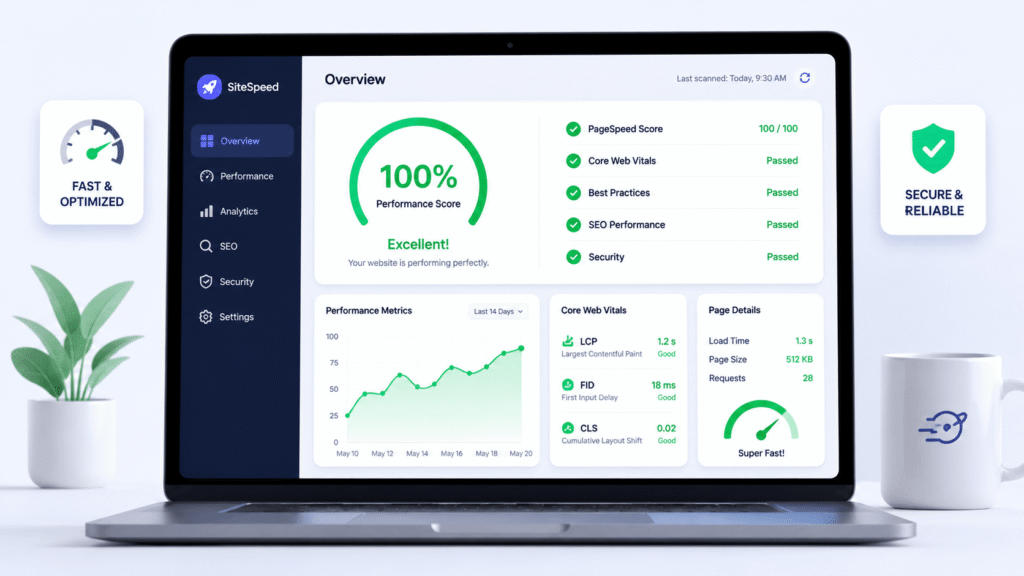
- Google PageSpeed Insights: Focuses on Core Web Vitals (LCP, FID, CLS).
- GTmetrix: Displays detailed waterfall charts and load breakdown.
- Pingdom Tools: Simple load time monitoring from global test servers.
Target Performance Benchmarks:
- Overall Load Time: Under 2 seconds
- First Contentful Paint (FCP): Under 1.8 seconds
- Largest Contentful Paint (LCP): Under 2.5 seconds
Frequently Asked Questions (FAQ)
What is the ideal load time for a WordPress website?
Google recommends page load times under 3 seconds, but aiming for under 2 seconds is best for optimal user experience and SEO conversion rates.
Does having too many plugins slow down WordPress?
It’s not just the quantity of plugins, but the quality. One poorly coded plugin can slow down your site more than 20 well-optimized ones. Always choose reputable, updated plugins.
Is WebP format better than PNG and JPG?
Yes! WebP provides significantly smaller file sizes with high image quality, making it the preferred standard for modern web design.
Conclusion
Website speed is no longer optional—it’s essential for SEO, user experience, and overall growth. By compressing your images below 200KB, enabling caching, maintaining your database, and using fast hosting, you can drastically boost your site’s performance.
Start by running a quick diagnostic on Google PageSpeed Insights, then apply the optimizations listed above step-by-step!